
ConvertPlus allows you to integrate with external email marketing software that help you store and manage leads obtained through the opt-in forms created using the plugin.
Among all the possible integrations, Connects, the inbuilt, tool allows you to integrate with Drip too.
In order to integrate ConvertPlus with Drip, you will have to follow the steps mentioned below.
1. Install the Connects Drip Addon
You can install the Connects Drip Addon from the Addons Installer seen under ConvertPlus.
In order to learn how to use the Addon Installer in ConvertPlus, you can refer to the article here.
2. The Addon is now installed
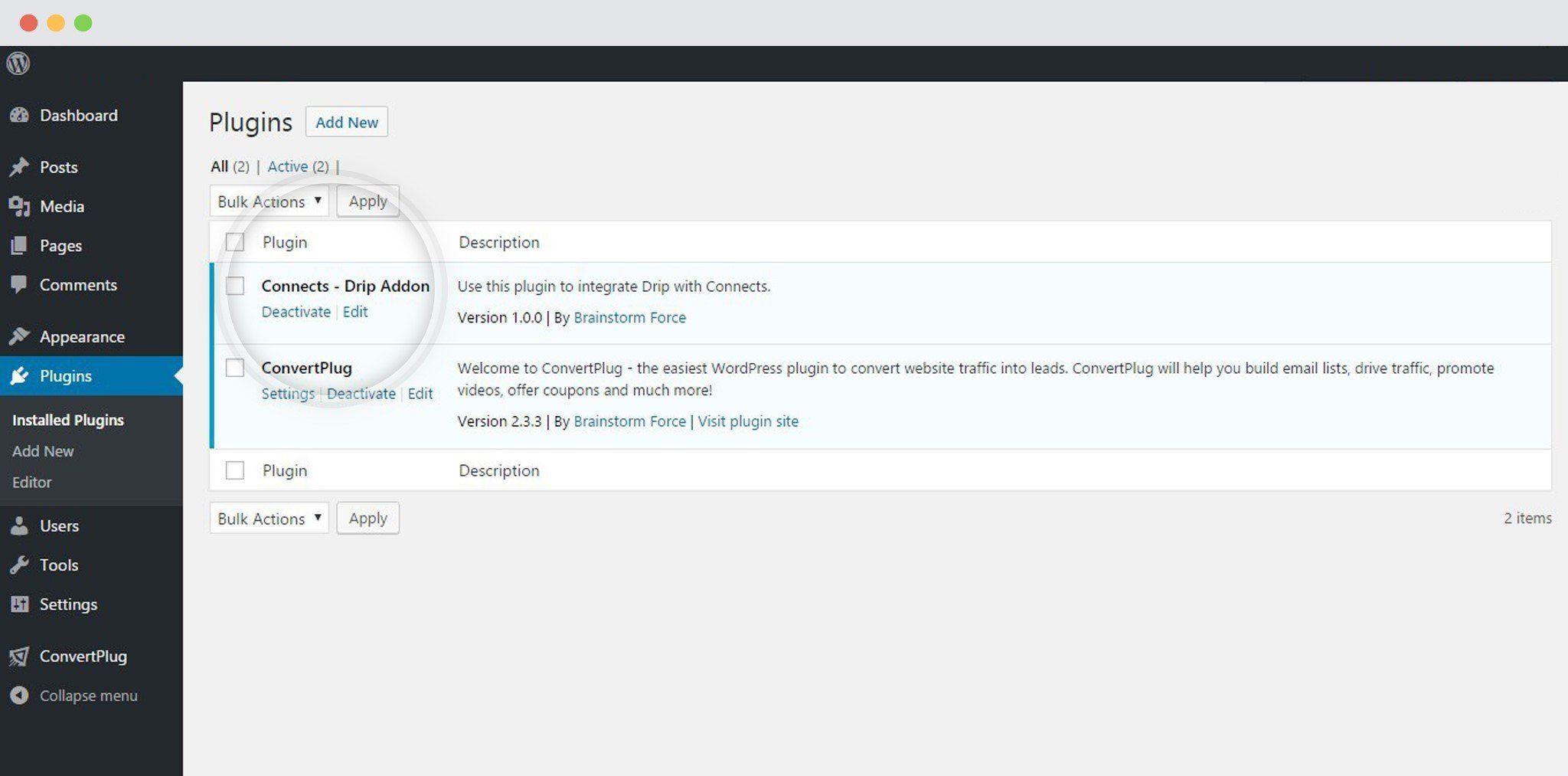
3. Open Connects
You need to open the Connects page seen under the Resources section of ConvertPlus.

4. Create a New Campaign
You will then find a “Create New Campaign” button that allows you to create a New Campaign. Click on it.

5. Enter a Campaign Name and Select the Third Party Software
A Campaign name should be valid, descriptive and understandable, so that you know what kind of leads are stored in it.
Select Drip from the drop down below.

6. Authenticate your Account
Each email marketing software might have a different attribute that may be needed to authenticate your account.
For the integration with Drip, you need an API Token.

Make sure you at least one Campaign in Drip that can be integrated with ConvertPlus.
Where will I find the API Token?
i. Go to Accounts

ii. Click on “head here”

iii. Scroll down and copy the API Token. (You can also create a new API Token)

7. Paste API Token in ConvertPlus

8. Select a Drip account you wish to integrate

9. Select Drip Campaign you wish to integrate ConvertPlus with

Note: You will have to create tags here (if needed)

10. Create Campaign
Using the Campaign in a Module
i. Select and customize a module according to the Campaign needs.
ii. Open it in the editor.
iii. Click on Submissions

iv. Select the appropriate campaign from the Drop down list

v. Save and Publish the Module
Note: If you wish to capture data from multiple fields in ConvertPlus and send it to Drip, you can simply. These fields will be automatically created in Drip on submission of the form.
The Double opt-in feature of Drip is enabled by default. You can disable the double opt-in feature by referring to the article here.